
Field guide
The StreetKit field guide: every feature, one short chapter each
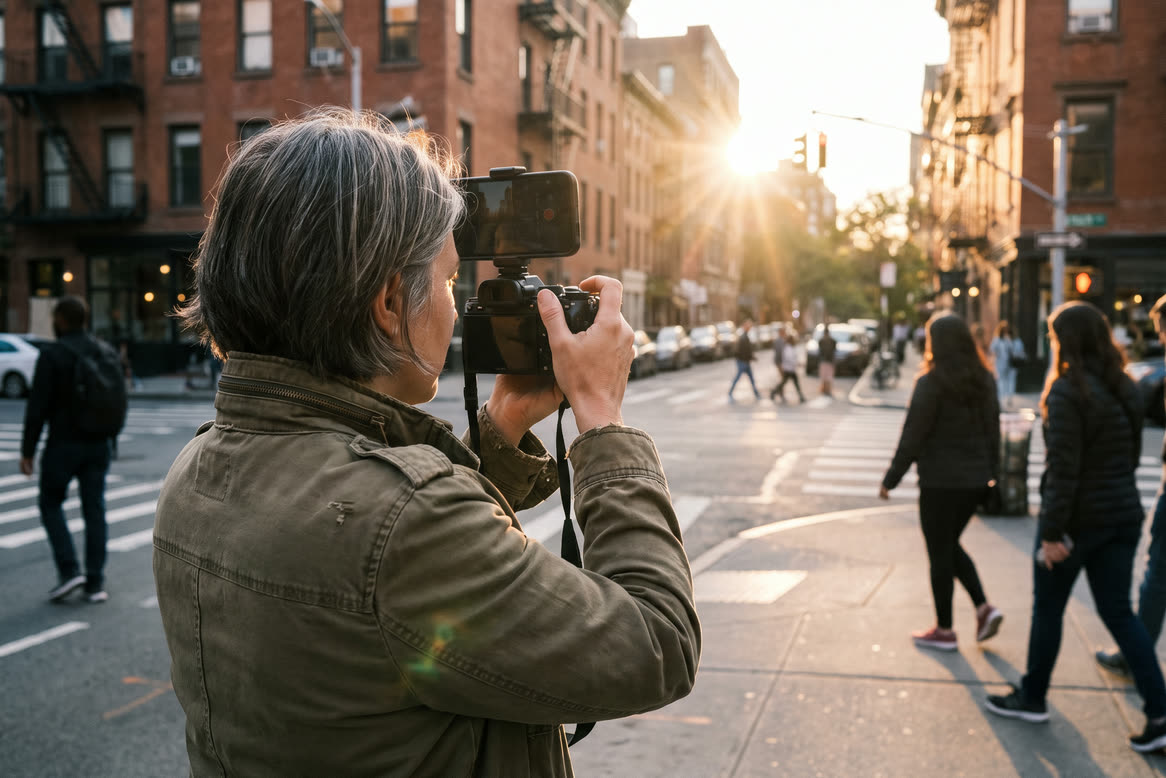
StreetKit does a few things and they follow the order of a walk: the camera talks to the phone, the shots sort themselves by person, and the person you photographed gets their photos before you part. This page is the whole app in short chapters. Where a full guide exists, each chapter links to it.
1. Tether a Canon over USB-C
One USB-C cable from the camera to an iPhone with USB-C (iPhone 15 and later). Open StreetKit, plug in, and every shot you take lands on the phone a second or two later, with no Wi-Fi pairing and no Canon app. The camera needs one menu setting: USB connection app set to Photo Import / Remote Control, which is where most "the phone sees nothing" problems end.
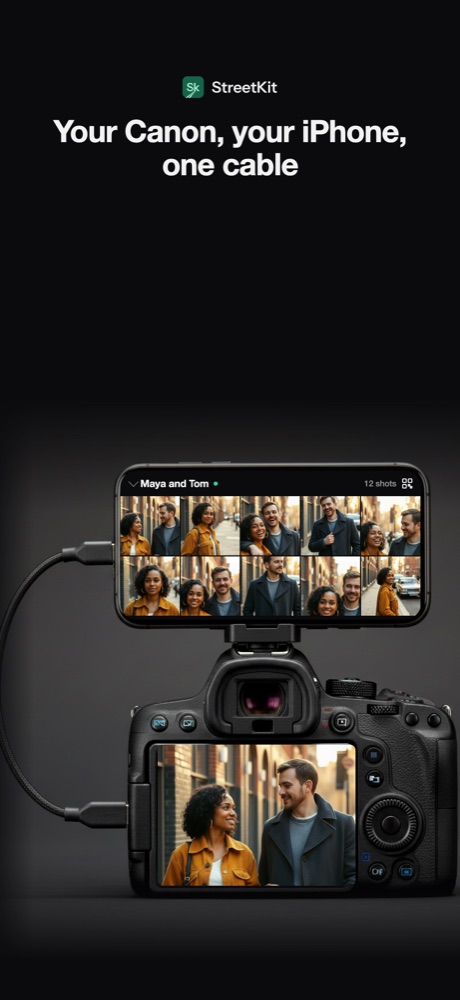
Full guide: how to tether a Canon to an iPhone over USB-C
Also: the USB connection app setting, which Canon cameras connect, EOS R3 settings.
2. Put the phone on the camera
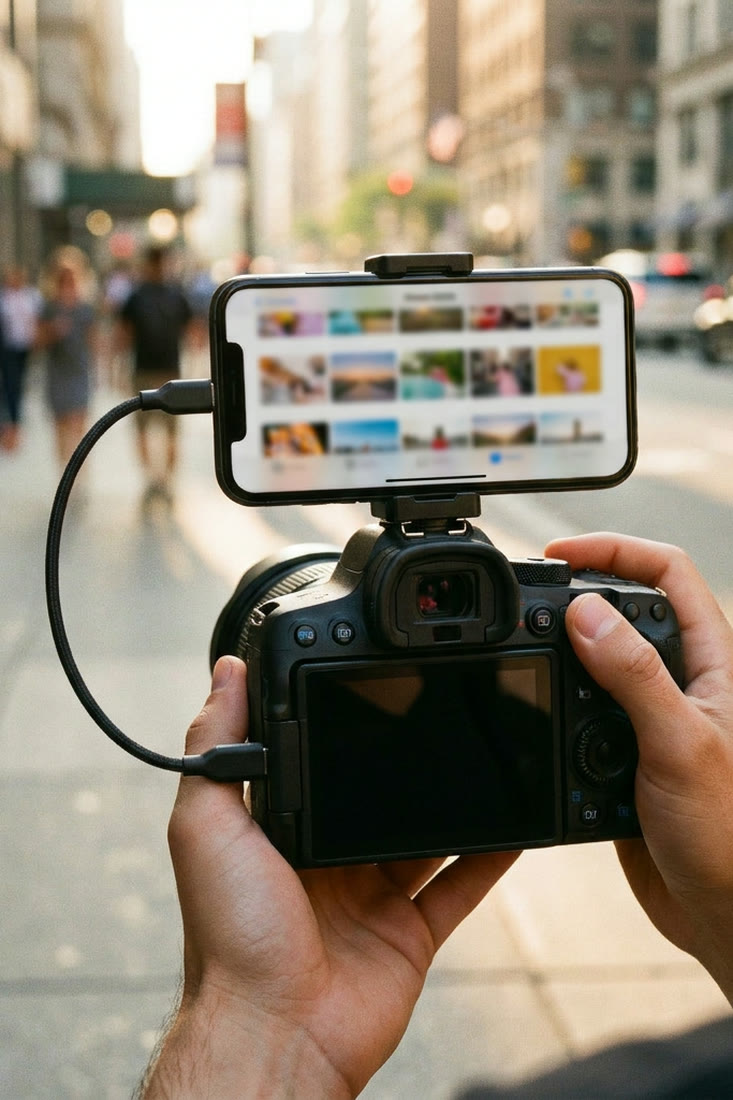
A phone clamp in the hot shoe and a short right-angle cable turn the iPhone into a second screen on the camera, so you can show someone a shot without reaching into a pocket. On a tripod, the phone sits on the rig and each shot appears on it as you take it.
Full guide: mounting an iPhone on a camera hot shoe
Also: the cables and mounts on the desk.
3. A group per person
New shots land in the group at the top of the list, marked with a green dot. When you move on to the next person, tap New group and their shots start a group of their own. Tap a group's name to rename it to the person's name. Select picks shots to move to another group, split into a new one, or delete, for the walk where you forgot to start a group in time.
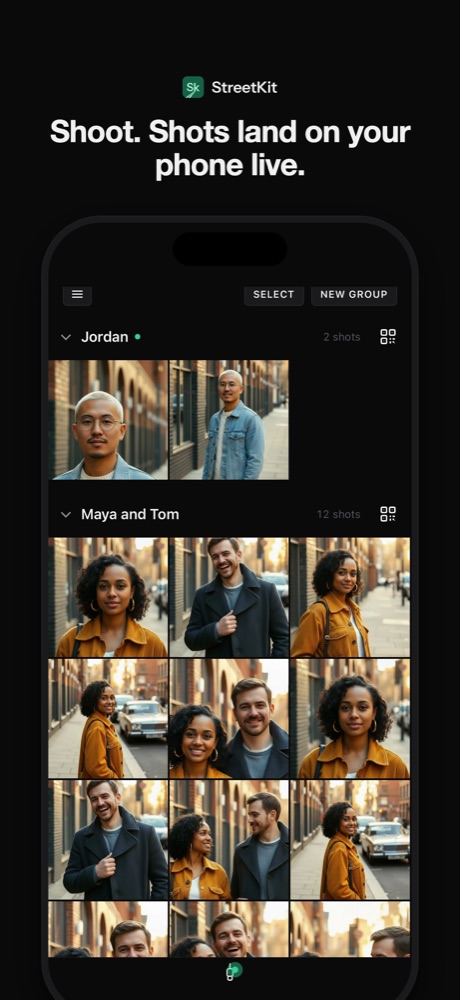
Full guide: how to send people the photos you took of them
4. Share by QR code
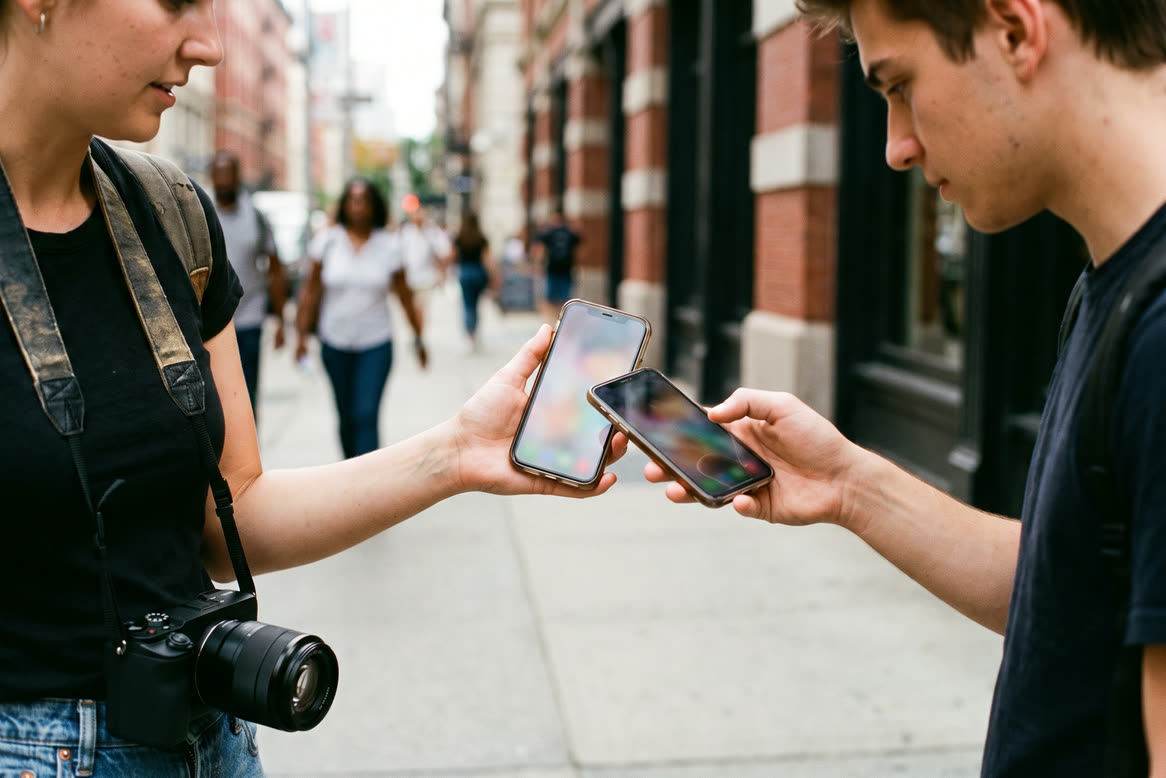
Every group has its own code. Tap the QR button beside a group, or swipe up on any shot in the viewer, and the code fills the screen. They scan it with their phone's camera, no app needed, and open a page with their photos and nobody else's. Shots you take after they scan appear on the same page.
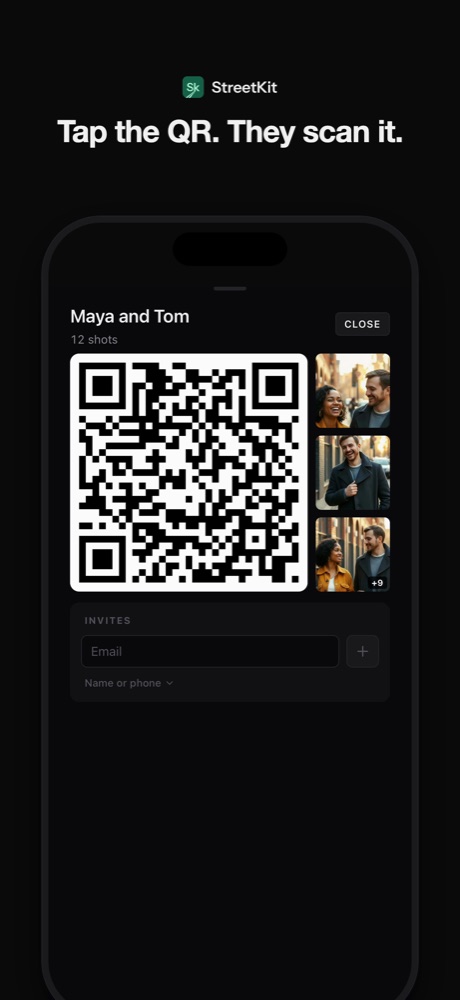
Full guide: share photos with a QR code
5. What they see
A page on streetkit.app with the group's name and its photos: previews within seconds, full size as your phone uploads them. They tap a photo to see it large, Save to Photos on an iPhone or download anywhere else, and Save all takes the group. If they sign in with an email they can like and comment on a shot, and the counts show up on that shot in your app. There is nothing to install on their side.
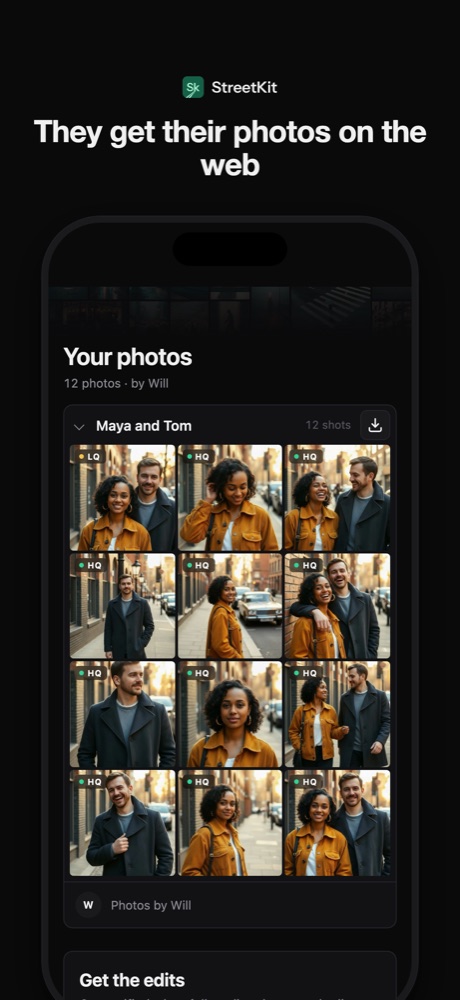
Full guide: same-day photo delivery
6. The code on an Apple Watch
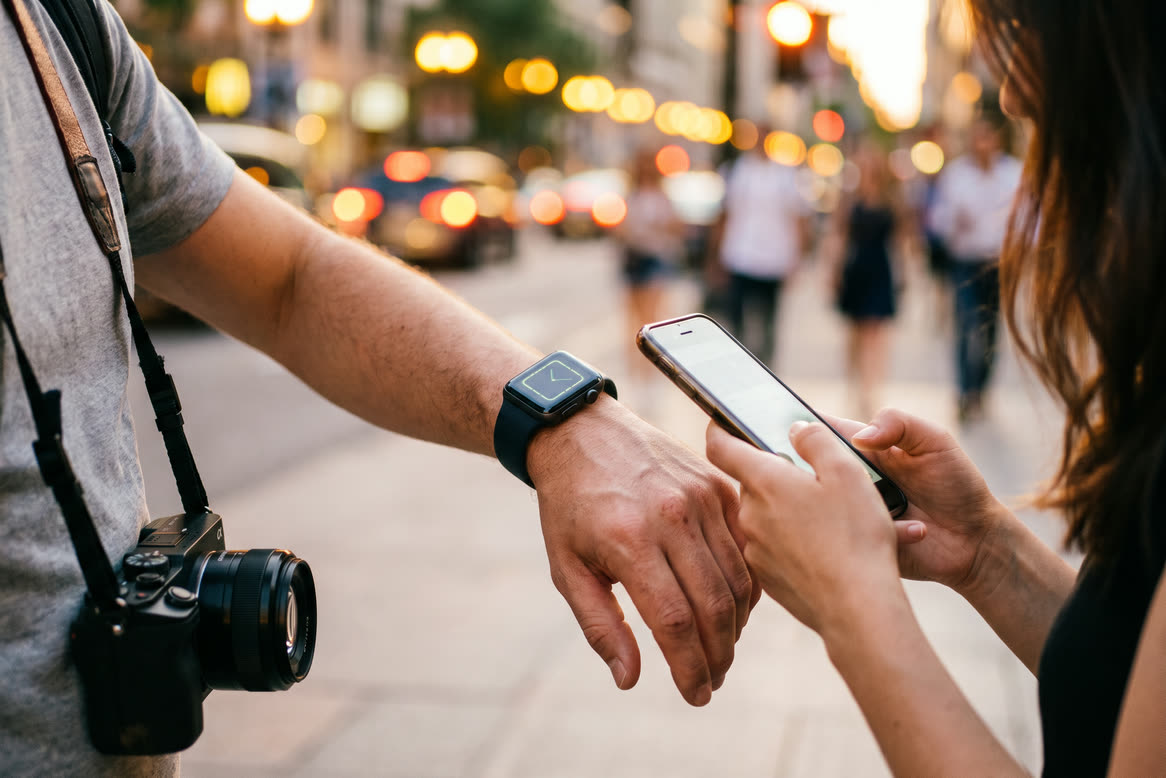
The StreetKit watch app shows each group's code, one page per group, the group you are shooting into first. With the phone on the camera or a tripod, you walk over and hold out your wrist instead of turning the rig toward them. Open a group's QR on the phone and the watch turns to the same group; the switch is Menu > Settings > Show QR on Watch, on by default.

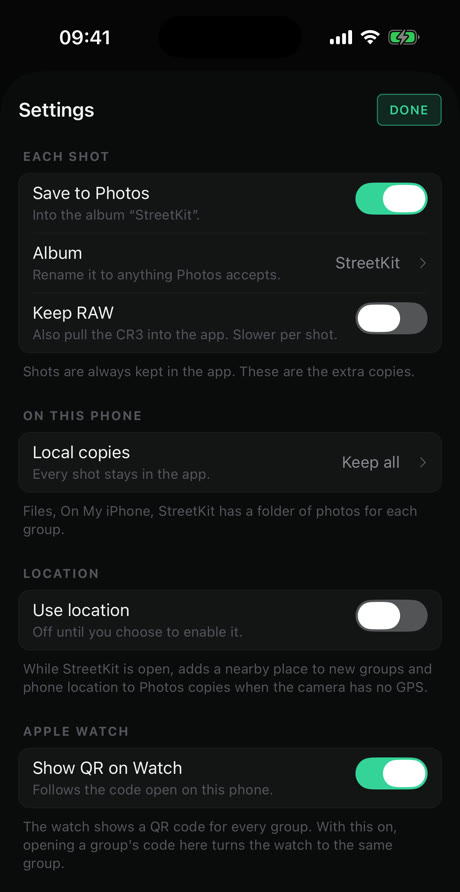
Full guide: your QR code on an Apple Watch
7. RAW, JPEG and HEIF
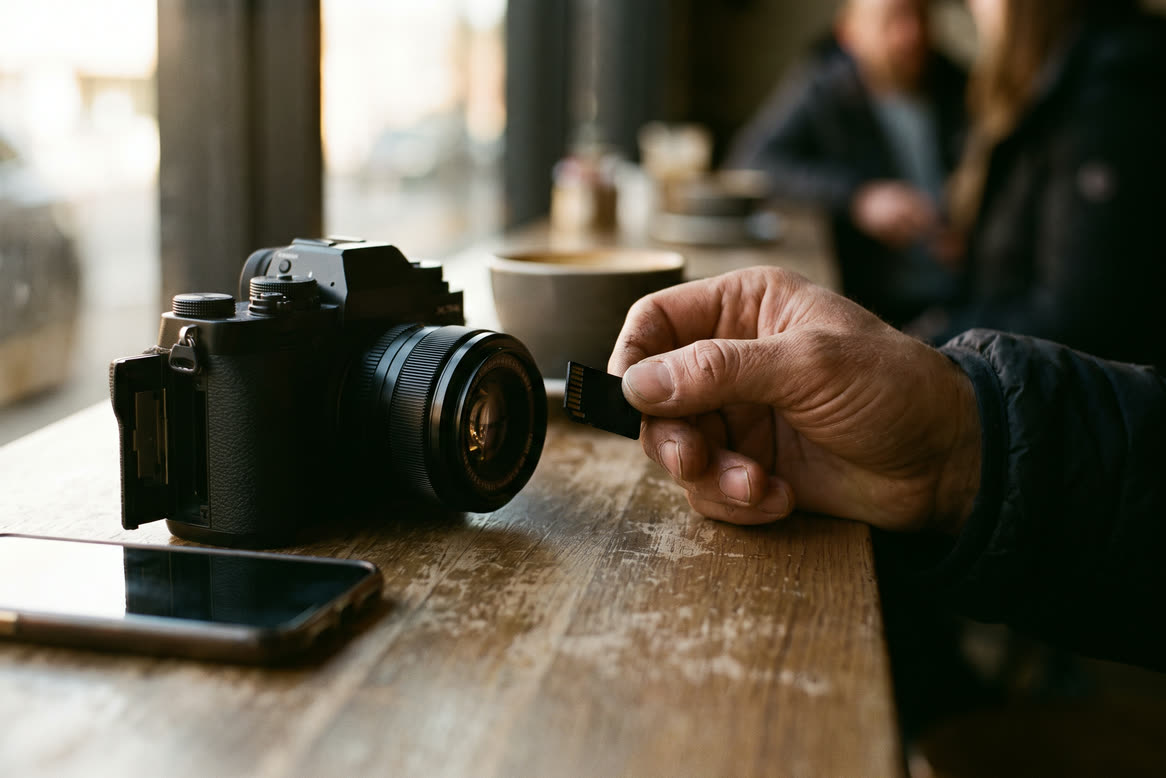
The phone shows the camera's JPEG or HEIF, so set the camera to RAW plus a JPEG or HEIF and the CR3 stays on the card for the edit. Turn on Keep RAW in Settings to pull the CR3 into the app too. Shooting RAW only? StreetKit makes a full-size JPEG from the CR3 on the phone, so the shot still has a picture to show and send.
Full guide: RAW, JPEG or HEIF when the camera is tethered
8. Into Photos, the album Street
Shots are always kept in the app. With Save to Photos on (the default, in Menu > Settings), each one is also copied into your iPhone's Photos library, in an album called Street, so the walk is there with the rest of your pictures without an export.
9. The cloud and your account
The share page needs the shots online, so StreetKit uploads them to your account as they arrive: a small preview at once over any connection, the full-size file over Wi-Fi by default (Menu > Cloud lets you allow cellular too). StreetKit Pro includes 100 GB, and the Cloud page shows how much is used. Sign in on a new phone and your groups and shots come back down to it.
Before the walk
The app is the easy part. For the asking, the settings and the paperwork: how to ask a stranger for a portrait, camera settings that work in twenty seconds, model releases and the first ten walks.
Keep reading
 Canon and iPhone
How to tether a Canon to an iPhone over USB-C
The cable, the one camera menu that matters, and the two ways shots can land on the phone.
Canon and iPhone
How to tether a Canon to an iPhone over USB-C
The cable, the one camera menu that matters, and the two ways shots can land on the phone.
 Sharing photos
Share photos with a QR code: what the other person sees, and what you keep
What the code contains, what opens on their phone, and who can see what.
Sharing photos
Share photos with a QR code: what the other person sees, and what you keep
What the code contains, what opens on their phone, and who can see what.
 Sharing photos
Your QR code on an Apple Watch: bring the code to them
With the phone on the camera or a tripod, the share code moves to your wrist, and it follows the code open on the phone.
Sharing photos
Your QR code on an Apple Watch: bring the code to them
With the phone on the camera or a tripod, the share code moves to your wrist, and it follows the code open on the phone.
 Canon and iPhone
RAW, JPEG or HEIF when the camera is tethered to a phone
An iPhone cannot show a CR3. What to set so the phone gets something, the HEIF option, and keeping RAW for the edit.
Canon and iPhone
RAW, JPEG or HEIF when the camera is tethered to a phone
An iPhone cannot show a CR3. What to set so the phone gets something, the HEIF option, and keeping RAW for the edit.