Already on the card
Apple Photos import
Several EOS R bodies can connect directly to an iPhone for Apple Photos import.
- Imports files already on the card

Canon and iPhone
Three layers
Most failures sit in Bluetooth pairing, the camera Wi-Fi link, or iPhone permission. Match the fix to the symptom and stop once the connection works.
When Canon Camera Connect is not working on an iPhone, match the fix to what the iPhone actually shows. A Bluetooth checkmark does not prove that the Wi-Fi part is working.
New to the app? The complete Camera Connect guide explains what it does and walks through a normal first setup. The checks below are for a setup that has stopped working.
Check the iPhone's Local Network permission.
| What is happening | Fix |
|---|---|
| An old camera network is saved | In iPhone Settings, Wi-Fi, forget it, then let Camera Connect create the connection again. |
| The iPhone keeps rejoining a known home or venue network | Move away from that network. Confirm the iPhone is on the SSID shown by the camera. |
| iOS says the camera network has no internet connection | That is normal. The network exists so the phone and camera can talk locally. |
| The connection disappears | Wake the camera. Some connections disappear when the body sleeps or its battery door opens. |
Open Images on camera. A successful connection can still look empty.
| Check | What to confirm |
|---|---|
| Permission | The camera granted the phone permission to view images. |
| Card | The files are on the card, and not in a different card slot. |
| Filter | A filter is not hiding the photos. |
| Format | The files use a format Camera Connect can display or transfer for that body. A RAW format the current app route does not preview can look empty. |
Camera Connect is primarily a browse-and-select workflow. If the goal is to see every new camera shot without reopening the card browser, a live tethering app is a different workflow.
Use this only after the earlier checks.
Firmware and app screens can change, so use the manual for the installed camera firmware when menu names differ.
If the goal is getting Canon files onto the phone rather than fixing Wi-Fi itself, compare Camera Connect with wired Photos import and live transfer in the Canon-to-iPhone transfer guide.
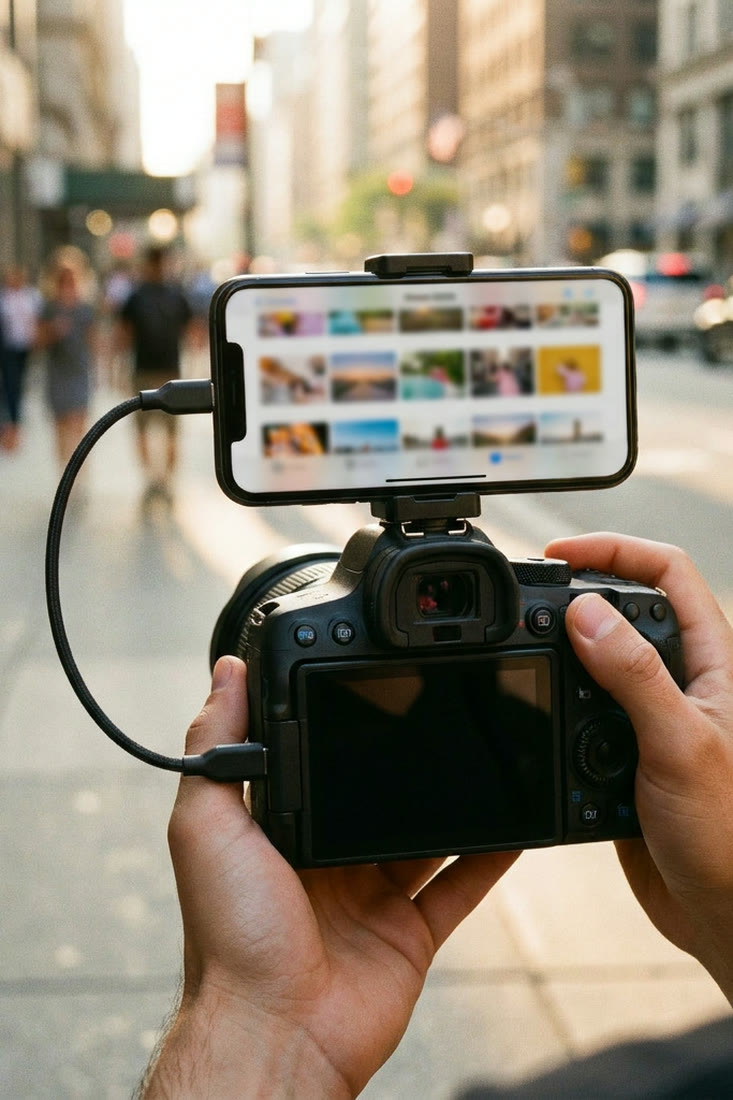
Several EOS R bodies can connect directly to an iPhone for Apple Photos import.
A direct camera connection: new shots sync while the app is open and ready.
For Photos import on bodies with Choose USB connection app, select Photo Import/Remote Control, turn camera Wi-Fi off, connect the camera, and open Photos.
Bluetooth pairing and the Wi-Fi image connection are separate. Check that the iPhone joined the camera network and that Camera Connect has Local Network permission.
The direct camera network is local and normally has no internet service. Stay connected to it while Camera Connect talks to the camera.
No. It clears wireless connection records, not the photos on the card. Canon says to remove the matching old camera record from the iPhone after the reset.
Canon and iPhone
Canon Camera Connect app for iPhone: what it does and how to use it
A plain guide to downloading, pairing and using Canon Camera Connect on an iPhone.
 Canon and iPhone
Canon Camera Connect alternatives for iPhone
Five real options, organized by the photography job each one does best.
Canon and iPhone
How to tether a Canon to an iPhone over USB-C
The cable, the one camera menu that matters, and the two ways shots can sync to the phone.
 Canon and iPhone
Which Canon cameras connect to an iPhone over USB
EOS R3, R5, R6, R8, R50 and the rest: which bodies talk to an iPhone over a cable.