Photos already taken
Photos import
The built-in route. It reads the card and asks the photographer to choose files.
- No Wi-Fi pairing step
- Keeps the phone's normal network available
- For files already on the card, not new shots

Canon and iPhone
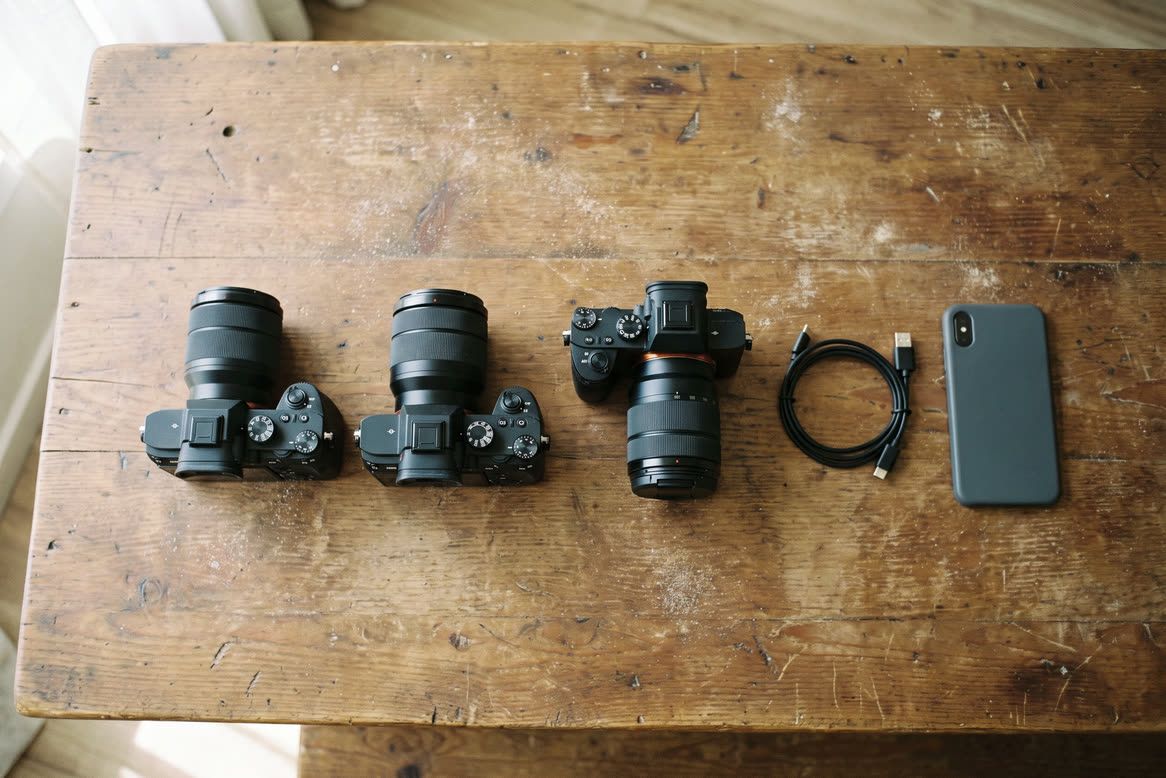
Tested
The Canon EOS R8 is tested with StreetKit.
The Canon EOS R8 is tested with StreetKit. It has a USB-C port. Three jobs are easy to confuse: importing existing card photos in Apple Photos, using Canon Camera Connect over Wi-Fi, and syncing each new shot with StreetKit while shooting.
The built-in route. It reads the card and asks the photographer to choose files.
The right choice for wireless browsing, transfer and supported remote-control features.
Each new shot syncs to the active group on the iPhone.
Use a USB-C to USB-C data cable with an iPhone 15 or later. Canon recommends the IFC-100U or IFC-400U for supported smartphone connections.
Open the wrench Set-up menu and choose Choose USB connection app. The R8 offers Photo Import/Remote Control, Video calls/streaming, and Canon app(s) for iPhone.
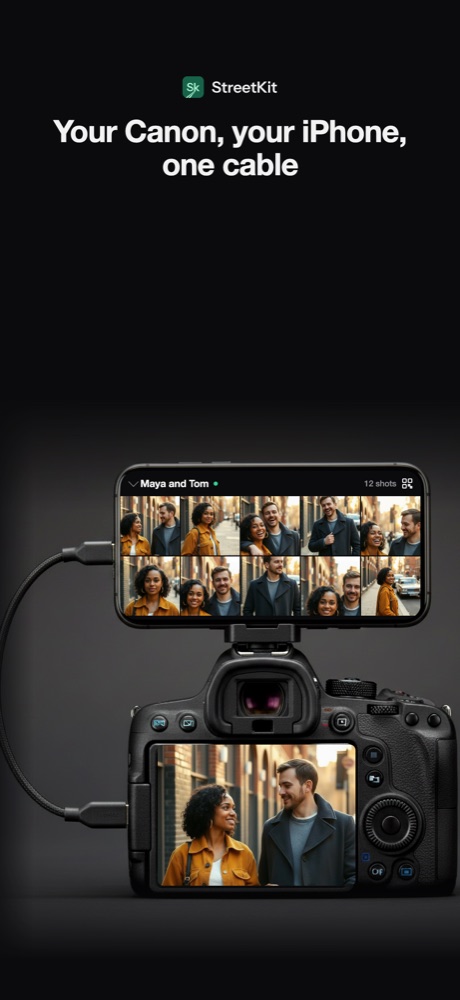
1Each new shot syncs into the group.
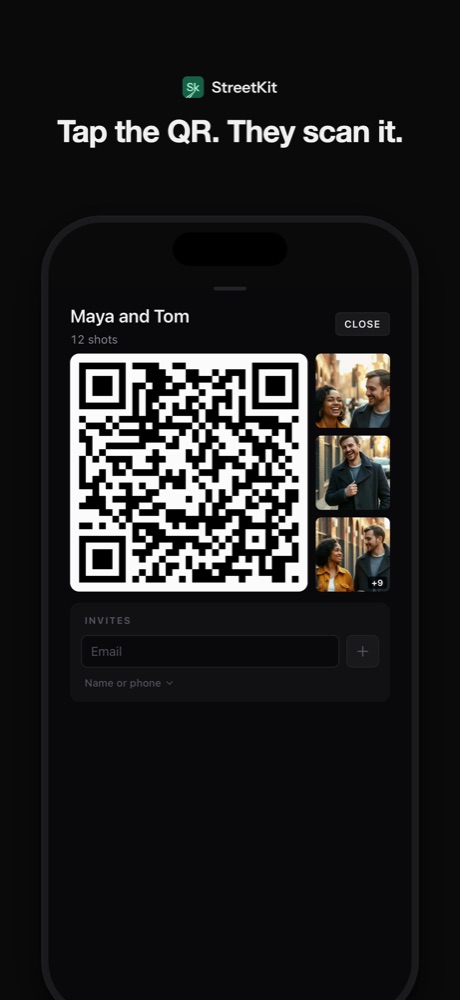
2Show Maya and Tom the QR code.
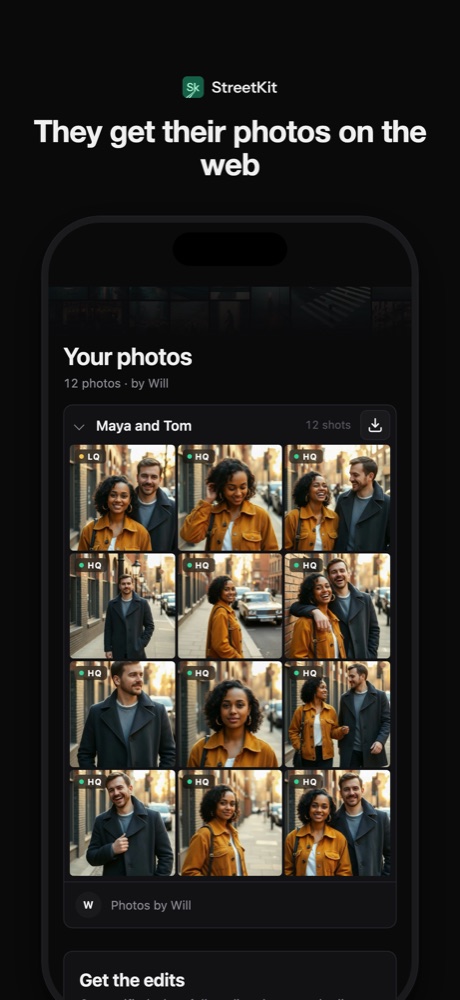
3The gallery opens on Maya's phone.
StreetKit groups the photos for delivery and saves displayable copies to Photos when that option is on.
For the full list, see which Canon cameras connect to an iPhone. Related bodies: the R8 Mark II and tested R6.
The Canon EOS R8 is tested with StreetKit. A real original R8 and iPhone have completed the StreetKit workflow.
The EOS R8 has a USB-C port. Use a USB-C to USB-C data cable with an iPhone 15 or later. Canon recommends the IFC-100U or IFC-400U for supported smartphone connections. A Lightning adapter path is not tested with StreetKit.
Yes for the wired workflows described here. Apple Photos can import existing card photos. StreetKit uses the direct camera connection for new shots taken while it is open and ready.
Canon and iPhone
Transfer photos from a Canon EOS R8 Mark II to an iPhone
EOS R8 Mark II: expected to work, with the exact port, menu and iPhone setup. The first test report earns a year of Pro free.
Canon and iPhone
Transfer photos from a Canon EOS R6 to an iPhone
EOS R6: tested, with the exact port, menu and iPhone setup.
Canon and iPhone
Which Canon cameras connect to an iPhone over USB
EOS R3, R5, R6, R8, R50 and the rest: which bodies talk to an iPhone over a cable.